We know that happy customers are essential to the success of a business, but if your company has a constantly expanding customer base, it can be tough to keep on top of all the survey feedback you receive. With CSAT surveys likely being sent out via automated systems, you may be looking for a way to hone in on the negative responses and provide more targeted outreach to your unsatisfied customers.
The workflow recipe below will walk you through creating a trigger to reopen solved tickets that receive negative CSAT ratings. Using a unique ticket View, you'll be able to take a second look at the tickets that were rated poorly, note potential trends in feedback, follow up with customers when necessary, and find ways to improve the overall experience of your clientele.
Step 1: Create your trigger
We'll first create a trigger to target all solved tickets that receive a bad or bad with comment CSAT rating.
- Click the Admin icon (
 ) in the sidebar, then select Business Rules > Triggers.
 - Select Add trigger from the top right corner of the page.
- Add the following conditions under Meet ALL of the following conditions:
- Status > Is > Solved
- Tags > Contains none of the following > csat_reviewed
- Add the following conditions under Meet ANY of the following conditions:
- Ticket: Satisfaction > Is > Bad
- Ticket: Satisfaction > Is > Bad with comment
- Add the following actions under Actions
- Ticket: Add tags > bad_csat
- Ticket: Status > Open

Note: Adding an ALL condition to exclude tickets with the tag 'csat_reviewed' is crucial to ensuring that this trigger does not continuously fire on the same tickets after they are reviewed. We will dive more into this in Step 3!
Step 2: Create a View to see all reopened Bad CSAT tickets
By including an action in the trigger above that adds a unique tag (bad_csat) when it fires, this now enables us to create a View that utilizes that same tag to better organize these newly reopened tickets.
- Click the Admin icon ( ) in the sidebar, then select Manage > Views.
- Select Add view from the top right corner of the page.
- Add the following conditions under Meet ALL of the following conditions:
- Ticket: Tags > Contain at least one of the following > bad_csat
- Ticket: Status > Less than > Solved

Note: You may also choose to edit the permissions on this View, depending on who will be reviewing these tickets.
Step 3: Wrap it all up with a Macro
Let's say you have now completed your review and followup on one of these bad CSAT tickets, and you are ready to set it back to solved status. Take a moment to remember your trigger in Step 1, which included the ALL condition 'Tags contain none of the following > csat_reviewed.'
By now applying this csat_reviewed tag to the ticket, you are ensuring that the trigger does not continue to fire, even once you place the ticket back into solved status and the other conditions are met.
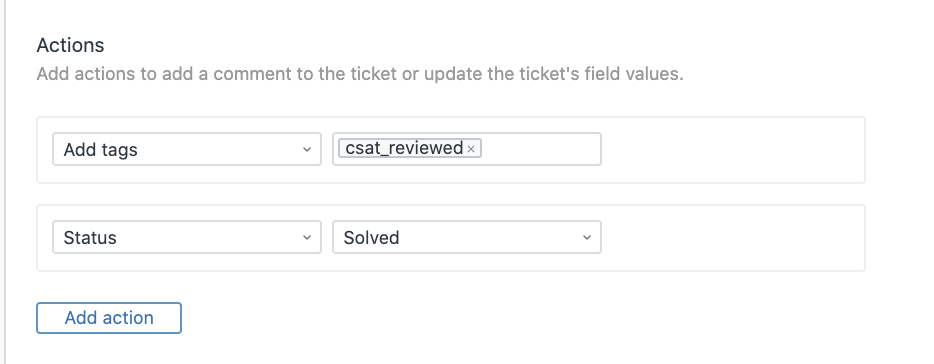
The most streamlined (and least typo-prone!) method of applying this tag would be through the use of a Macro. Unlike triggers and automations, macros only contain actions, not conditions. You can configure this macro to not only add the desired tag, but also set the status back to 'solved.'
- Click the Admin icon ( ) in the sidebar, then select Manage > Macros.
- Select Add macro from the top right corner of the page.
- Add the following conditions under Actions:
- Add tags > csat_reviewed
- Status > Solved
Note: From this same settings page, you can also determine which of your users have access to this macro.
There you have it! You now have a workflow in which all tickets that receive negative CSAT feedback are automatically changed from Solved to Open status and placed in a unique ticket View, ready for your perusal. This allows you to take a second look at poorly rated tickets and go the extra step of offering additional customer support where needed.
Comments
0 comments
Please sign in to leave a comment.